Introduction
This is the official Squishy Volumes 0.3.2 user guide.
You are likely looking for Getting Started.
What is Squishy Volumes?
Squishy Volumes is an open source implementation of the Material Point Method (MPM), developed by Algebraic, and available as a Blender extension.
Important
The Squishy Volumes extension currently requires Blender 5.0, 5.1, or 5.2.
Squishy Volumes is physically based and allows for realistic simulations of a wide range of materials. It is written in a combination of Python for the Blender integration, Rust for the core logic, and WGSL for the compute shaders. Squishy Volumes utilizes Geometry Nodes for customizable input generation and output visualization.
You can run Squishy Volumes on:
- Linux
- Windows
- macOS
Squishy Volumes can use your GPU! It runs significantly faster compared to the CPU, and all major GPU vendors are supported:
- NVIDIA
- AMD
- Apple Silicon
Showcase

Getting Started
In this chapter, we’re getting started with Squishy Volumes.
There is no prior experience assumed, and we are going to go through these steps:
In the end, we are going to have this (very) basic Squishy Volumes simulation of a squishy cube falling onto a plane:
Let’s start by installing the software.
Installation
The first step is to install Blender and the Squishy Volumes extension.
Blender
The Squishy Volumes Extension runs within Blender, so download Blender if you haven’t already. This section of Blender Guru’s beginner video got you covered if you’ve never done this.
Important
The Squishy Volumes extension currently requires Blender 5.0, 5.1, or 5.2.
Unpack or install and start Blender.
Squishy Volumes
Here we’re going with the ZIP-approach.
The preferred way to get Squishy Volumes is via Gumroad. It is Pay-What-You-Want, and any amount is greatly appreciated!
This is what you get:
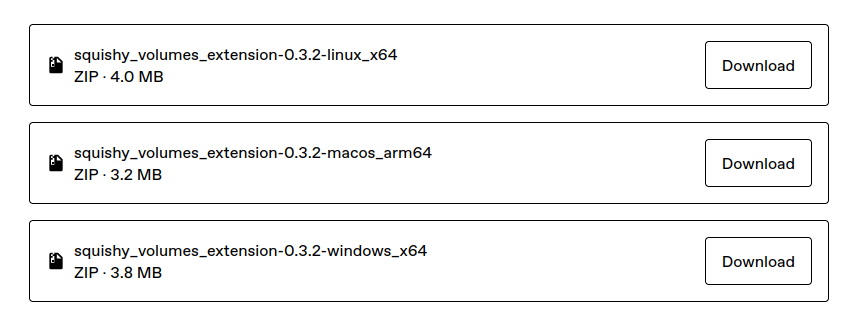 You only need one of these ZIP files, choose the one that fits your operating system. It contains everything you need to run Squishy Volumes.
And
Then you just drag and drop the ZIP file into Blender like this:
You only need one of these ZIP files, choose the one that fits your operating system. It contains everything you need to run Squishy Volumes.
And
Then you just drag and drop the ZIP file into Blender like this:
The info Installed "squishy_volumes_extension" pops and we’re ready to squish some volumes!
See troubleshooting installation if you don’t see that info.
Next, we’ll discover the Squishy Volumes UI.
Discover UI
With everything installed, we have to find the UI.
Sidebar
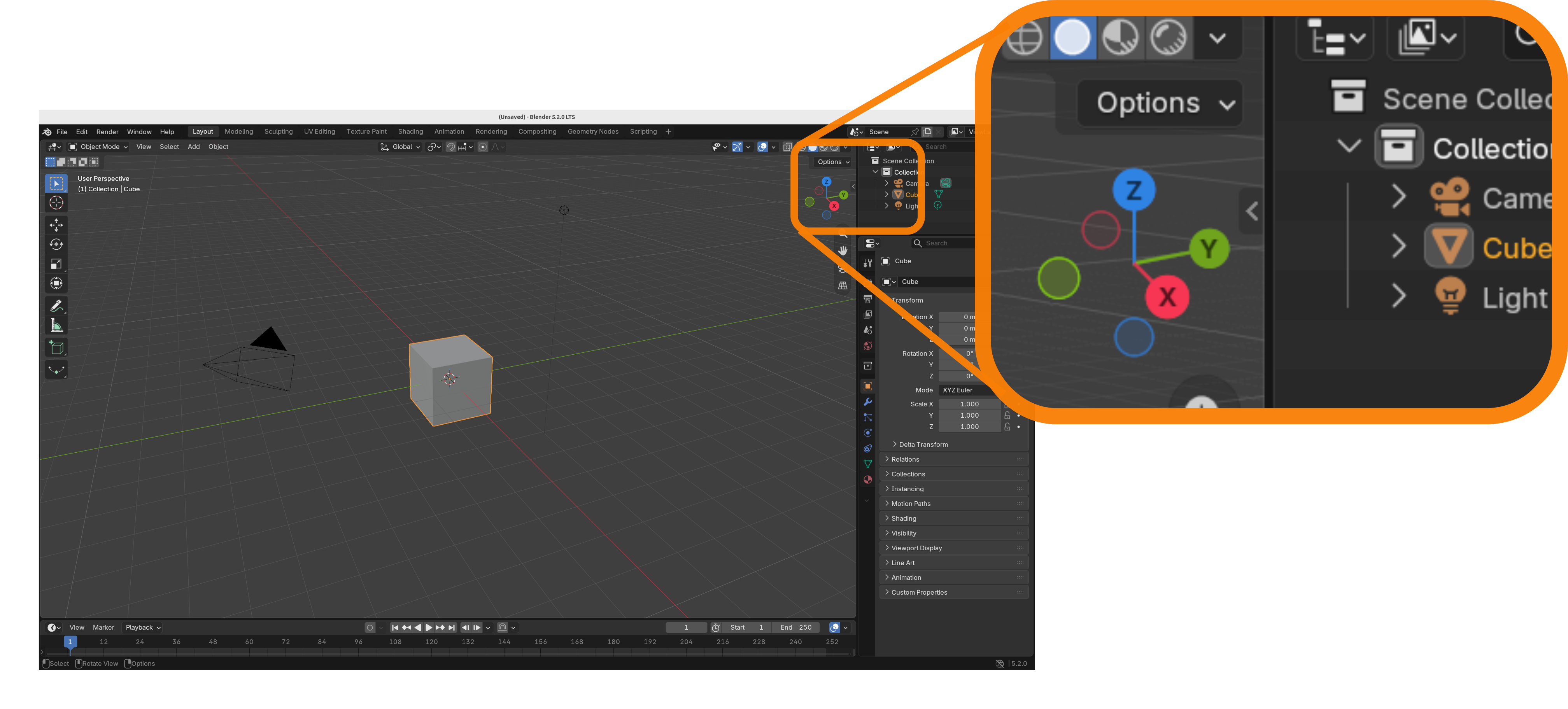
The most important Squishy Volumes UI is in the sidebar, which is hidden by default. You can open the sidebar either by pressing the hotkey ‘n’ or by clicking on that tiny arrow:
Squishy Volumes Tab
Within the sidebar, most likely at the very bottom, there is the Squishy Volumes tab! Click on that.
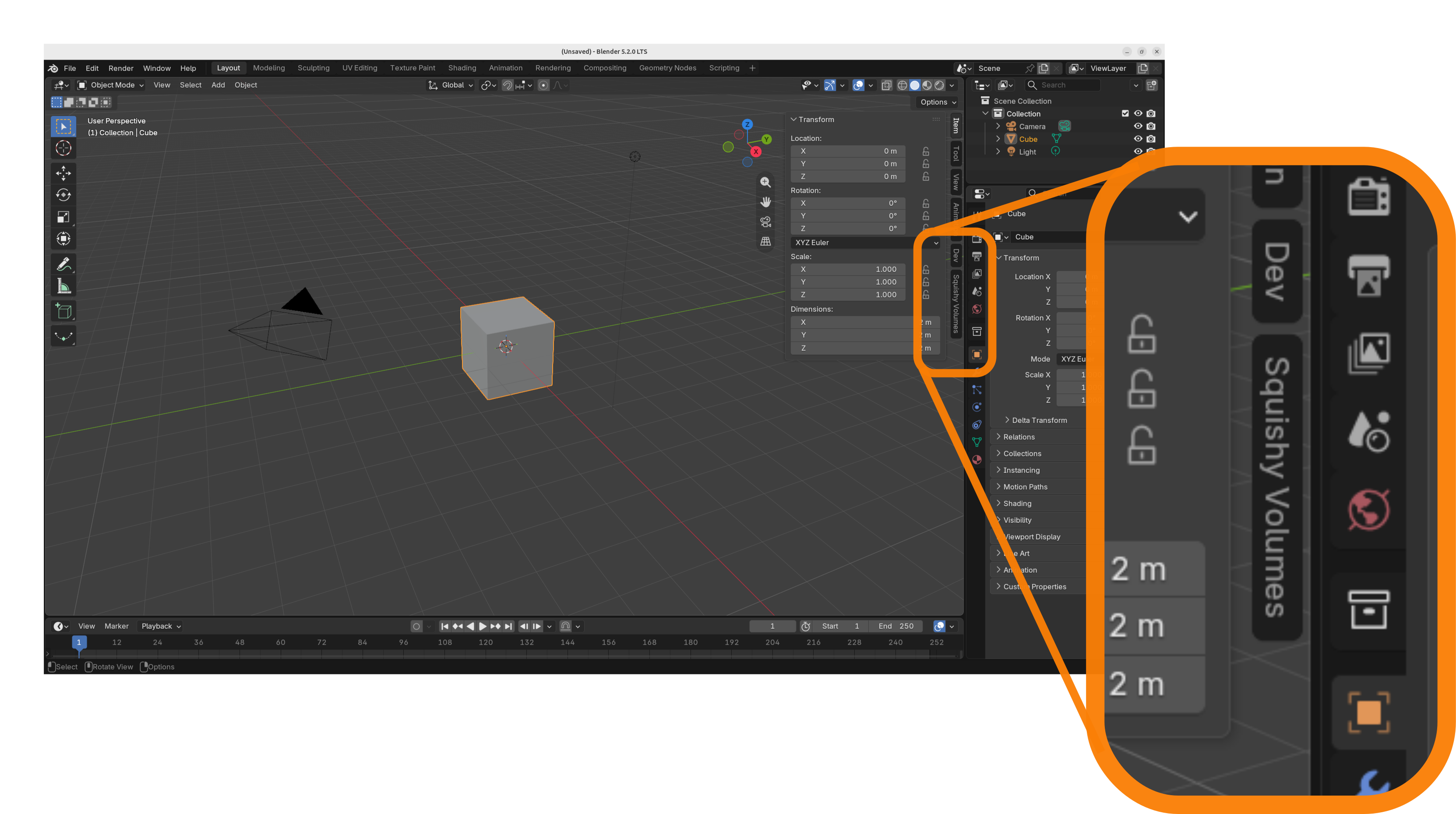
We have discovered the Squishy Volumes UI!
Now there is only this one panel ‘Overview’ with two buttons to start with, but this space will soon be populated with all the knobs and buttons that are relevant to Squishy Volumes.
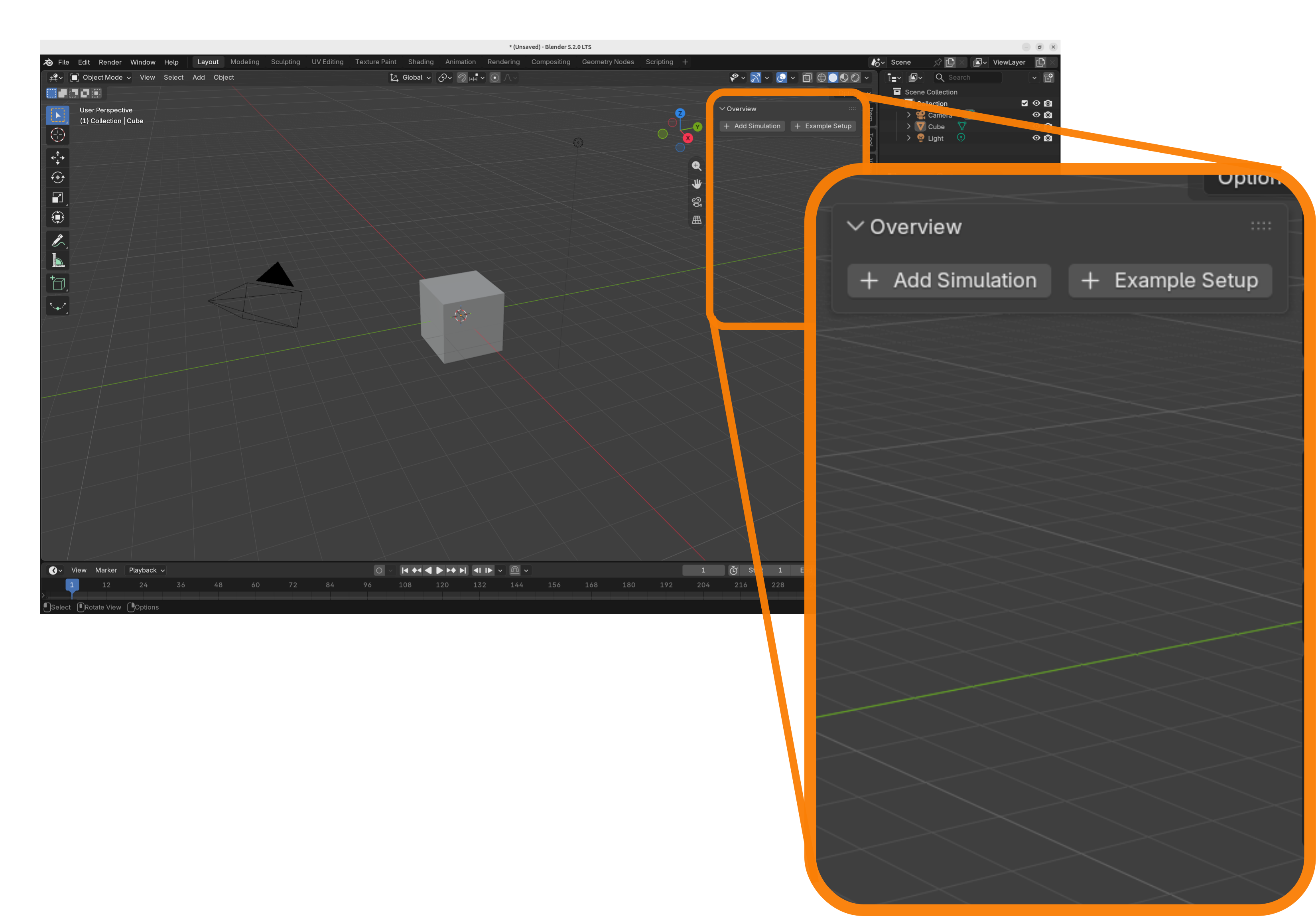
Kick in the next gear, we’re about to simulate an example setup.
Example Setup
Having found the UI, we can skip a few setup steps by using an example setup.
If you’re already curious, these are the automated steps:
- Create a new simulation
- Set the grid node size to 0.2
- Set the simulation scale to 5.0
- Add two simulation inputs:
- primitive mesh cube as particles
- primitive mesh plane as collider
- Set capture frames to 1
- Set the time step to 0.005
- Add a simulation output: the cube’s particles
- Finally, start baking
This gives us the squishy cube falling onto the plane.
Select Example
Click the ‘Example Setup’ button in the ‘Overview’ panel:
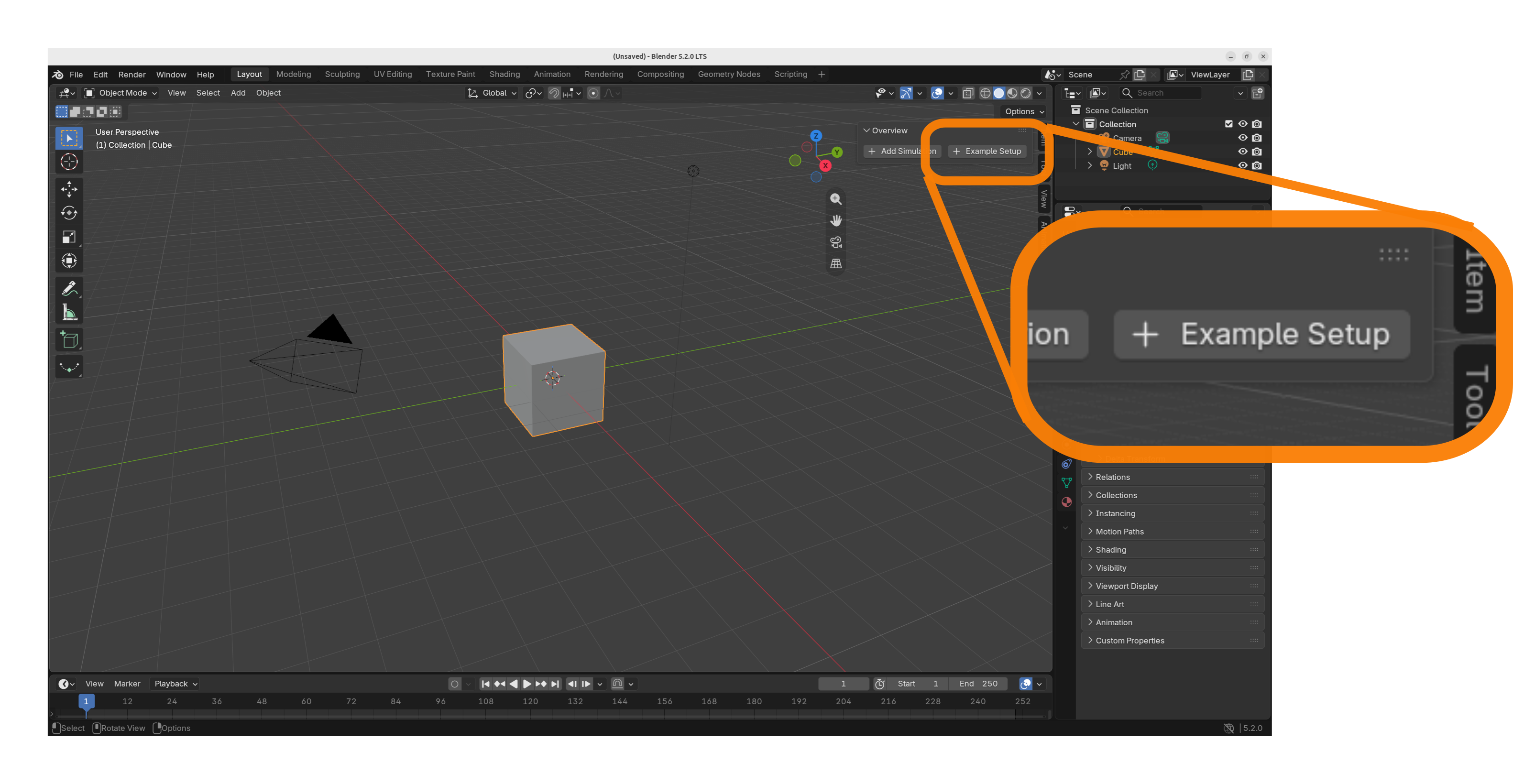
Currently, there is really only one example setup: ‘Boing Block’. Chose that one and click ‘Ok’.
Already Simulating!
Once the example setup is completed, we’re already simulating!
This is indicated by the moving progress bar and it should look something like this:
Now to view the simulation result, we can just press the hotkey ‘space’ or click the play button on the bottom.
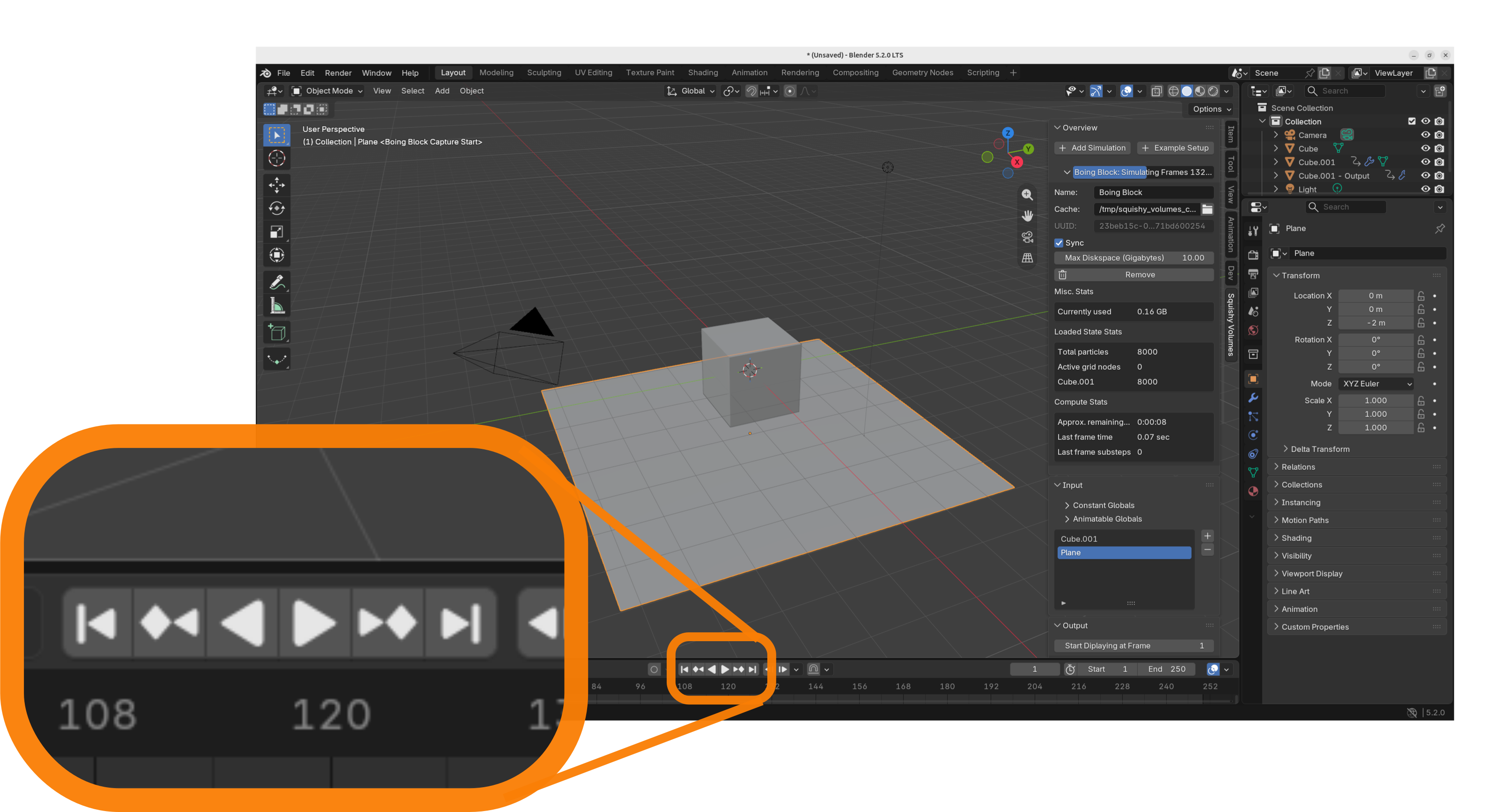
Finally, the default ‘Cube’ and ‘Cube.001’ are blocking our view of the simulation result and we need to hide them.
You can do this either by selecting them and pressing the hotkey ‘h’, or by clicking the eye button over in the outliner.
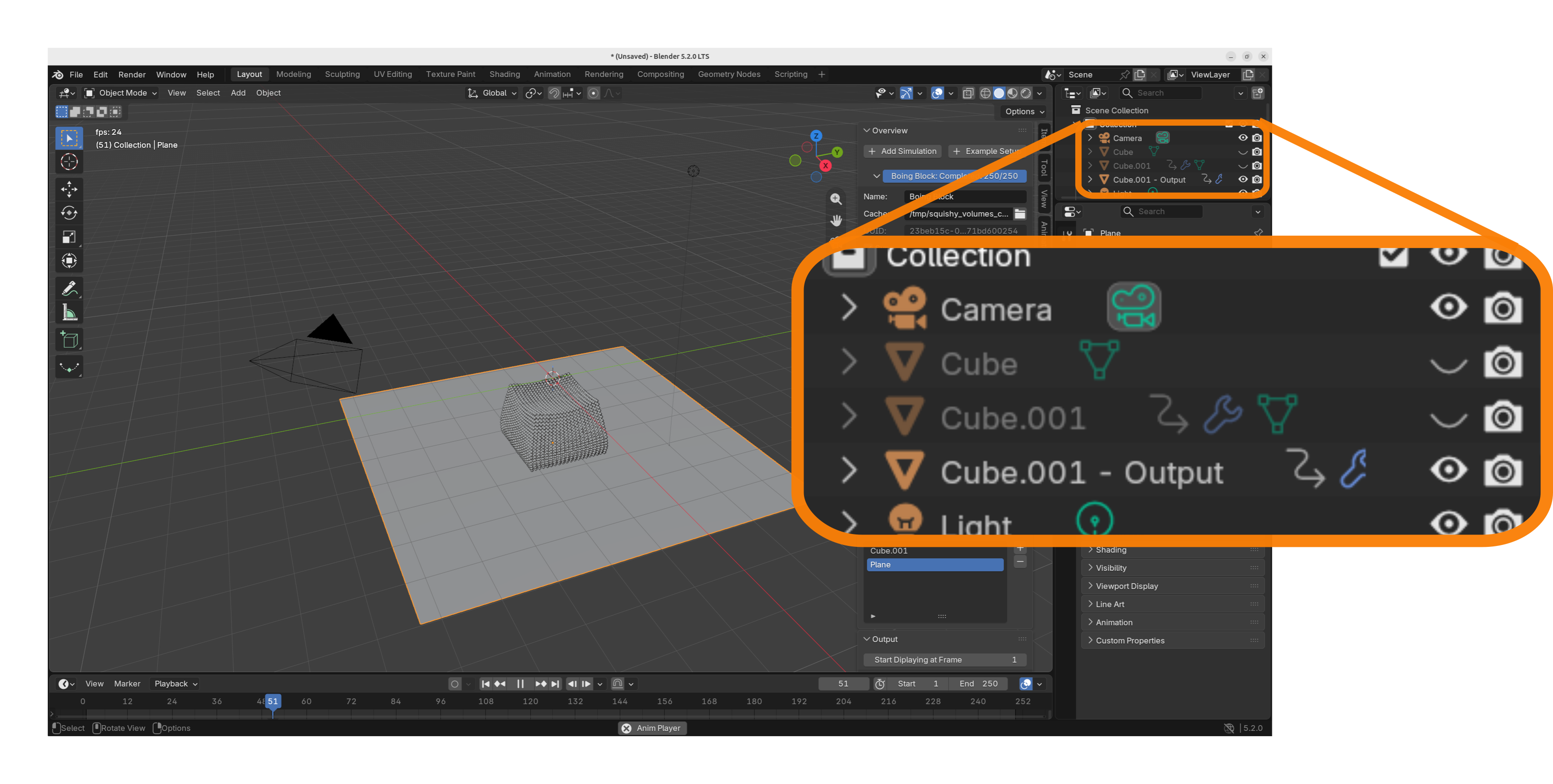
Got Started :)
That’s it! 🎉🎉🎉
Of course, this is only the most basic thing you can do with Squishy Volumes. But, getting started is usually half the effort in learning something new!
Take your time, scroll through the panels.
You might already have a pretty good guess at what each knob and button does, and if not, do not panic. We will cover the UI in detail in the next chapters of this book.
Troubleshooting
Here are solutions to some common problems.
First, if you are not using the latest release of Squishy Volumes, please have a look at the changelogs of newer releases. Your problem might already be solved in a newer release.
If you can’t find a solution to your problem here, please consider the get-help Discord channel and opening an issue on Github.
You can also just message me (Vollkornaffe) on Discord directly, I’m happy to help.
It is never the user’s fault.
I swear by this. Yet certain problems are so hard to solve ‘completely’ that we have to cut some corners (at least for now) and this is why this chapter exists.
No Squishy Volumes UI
If you cannot find the Squishy Volumes UI:
Please make sure that you have installed Squishy Volumes and that you are in Object Mode.
If you have several other Add-ons installed, you might need to scroll down in the sidebar.
Installation
Here are some problems related to installing Squishy Volumes.
Verify
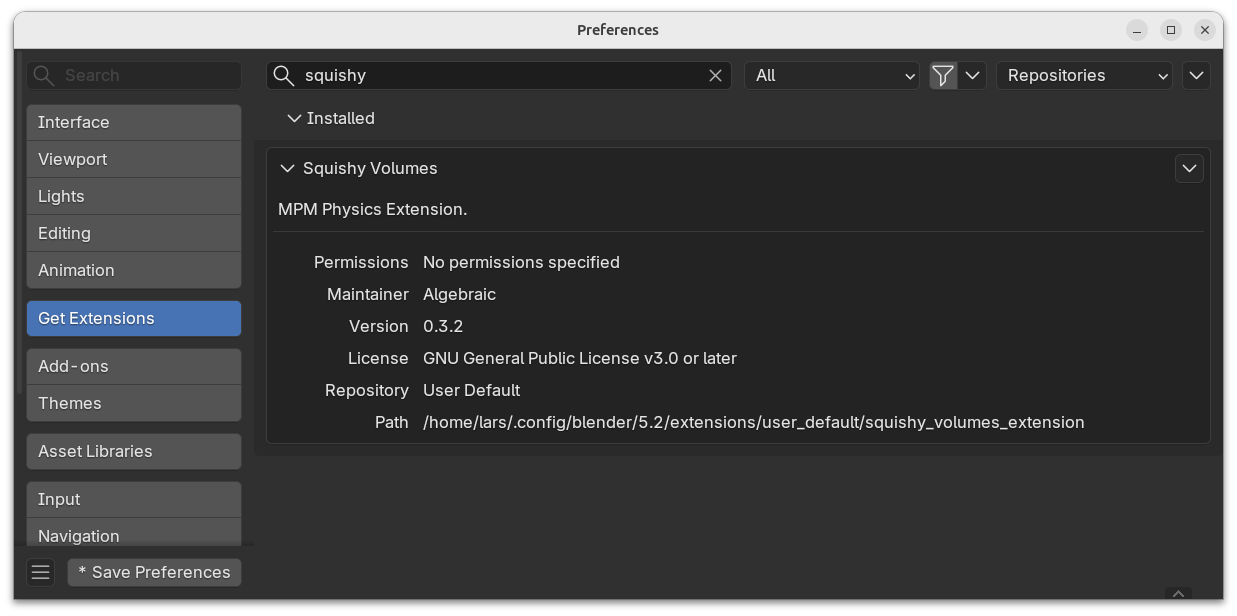
Please try to verify that Squishy Volumes is installed in Edit > Preferences (Ctrl + ,).
Multiple
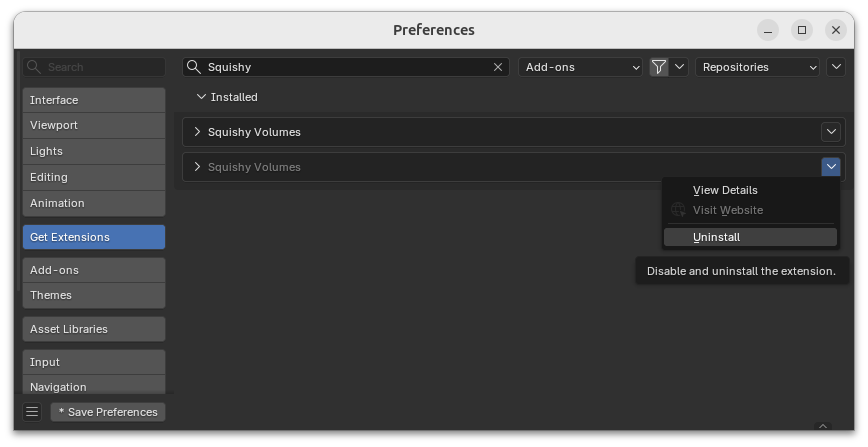
This can happen by mixing installation methods.
If there are multiple installations of Squishy Volumes present, remove duplicates.
Orphan
This can happen when ‘extension.blender.org’ was chosen during install.
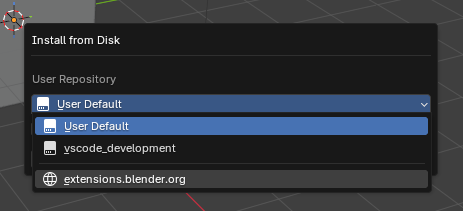
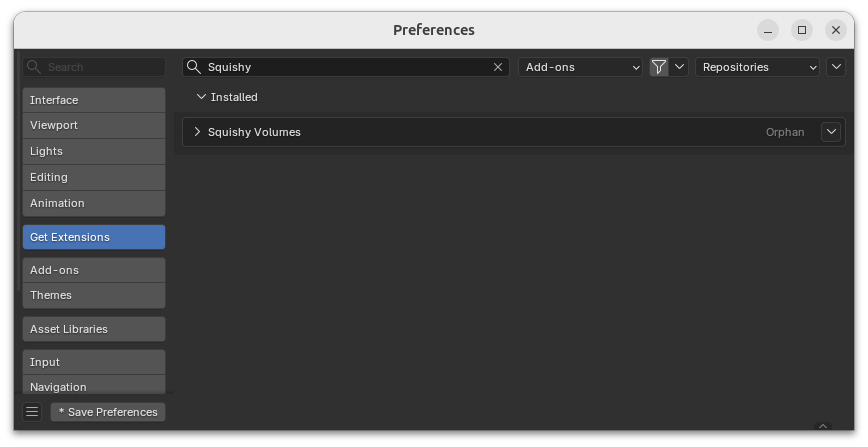
Please uninstall and try again with ‘User Default’.
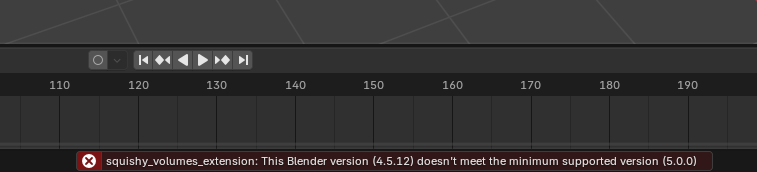
Unsupported Blender Version
Make sure your Blender version is supported.
You’ll see this when you try to install Squishy Volumes in an unsupported Blender version like 4.5.12: