Example Setup
Having found the UI, we can skip a few setup steps by using an example setup.
If you’re already curious, these are the automated steps:
- Create a new simulation
- Set the grid node size to 0.2
- Set the simulation scale to 5.0
- Add two simulation inputs:
- primitive mesh cube as particles
- primitive mesh plane as collider
- Set capture frames to 1
- Set the time step to 0.005
- Add a simulation output: the cube’s particles
- Finally, start baking
This gives us the squishy cube falling onto the plane.
Select Example
Click the ‘Example Setup’ button in the ‘Overview’ panel:
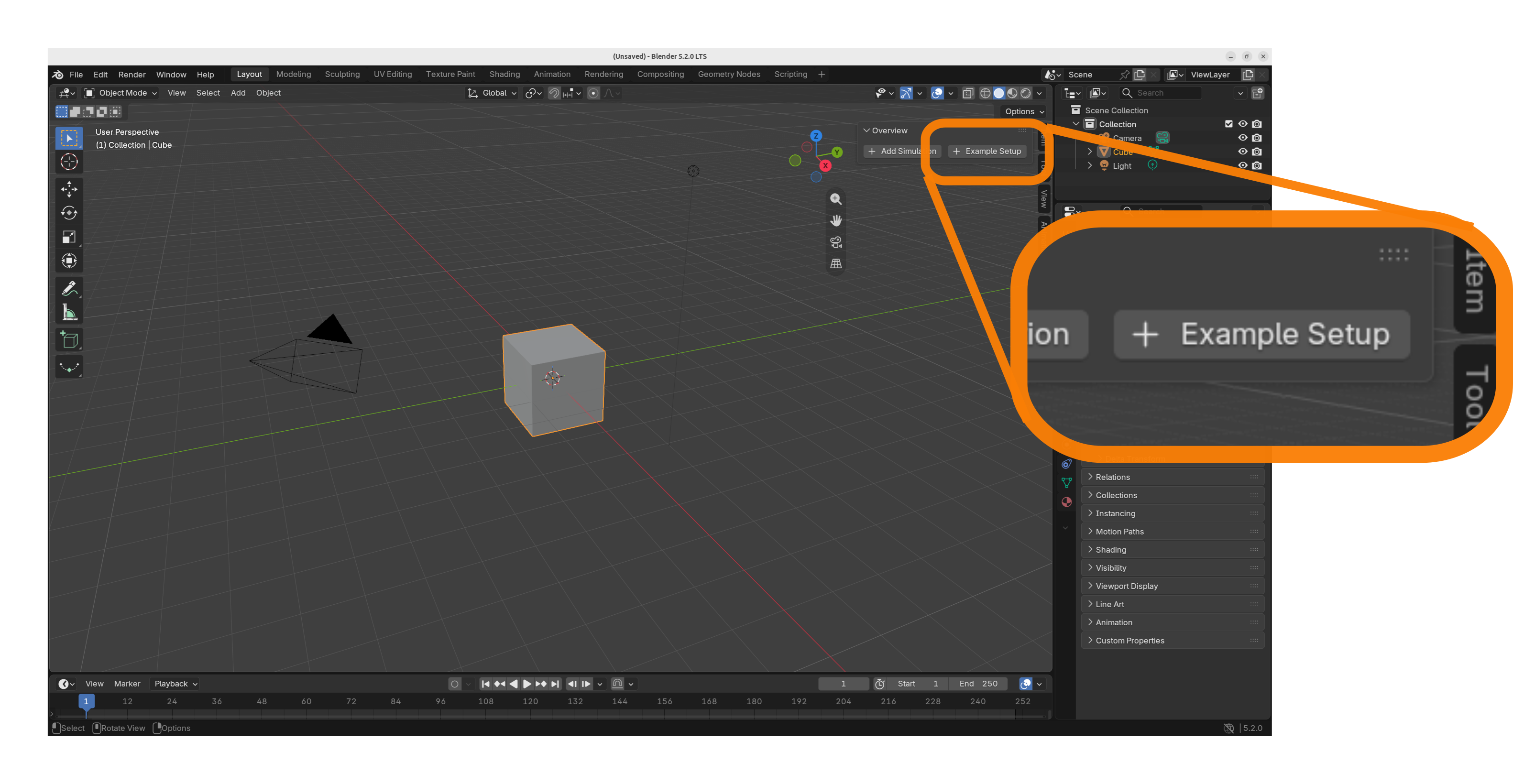
Currently, there is really only one example setup: ‘Boing Block’. Chose that one and click ‘Ok’.
Already Simulating!
Once the example setup is completed, we’re already simulating!
This is indicated by the moving progress bar and it should look something like this:
Now to view the simulation result, we can just press the hotkey ‘space’ or click the play button on the bottom.
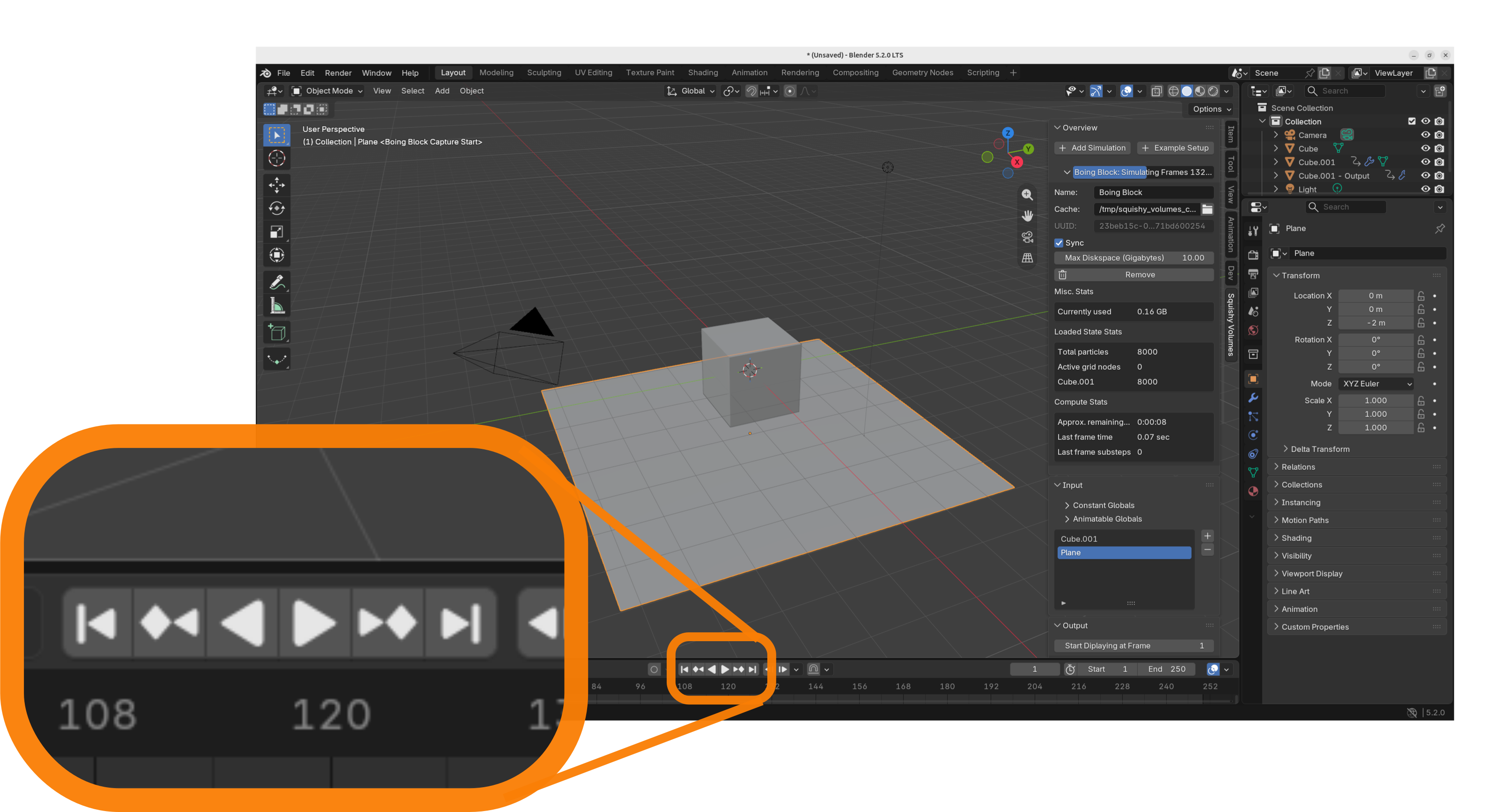
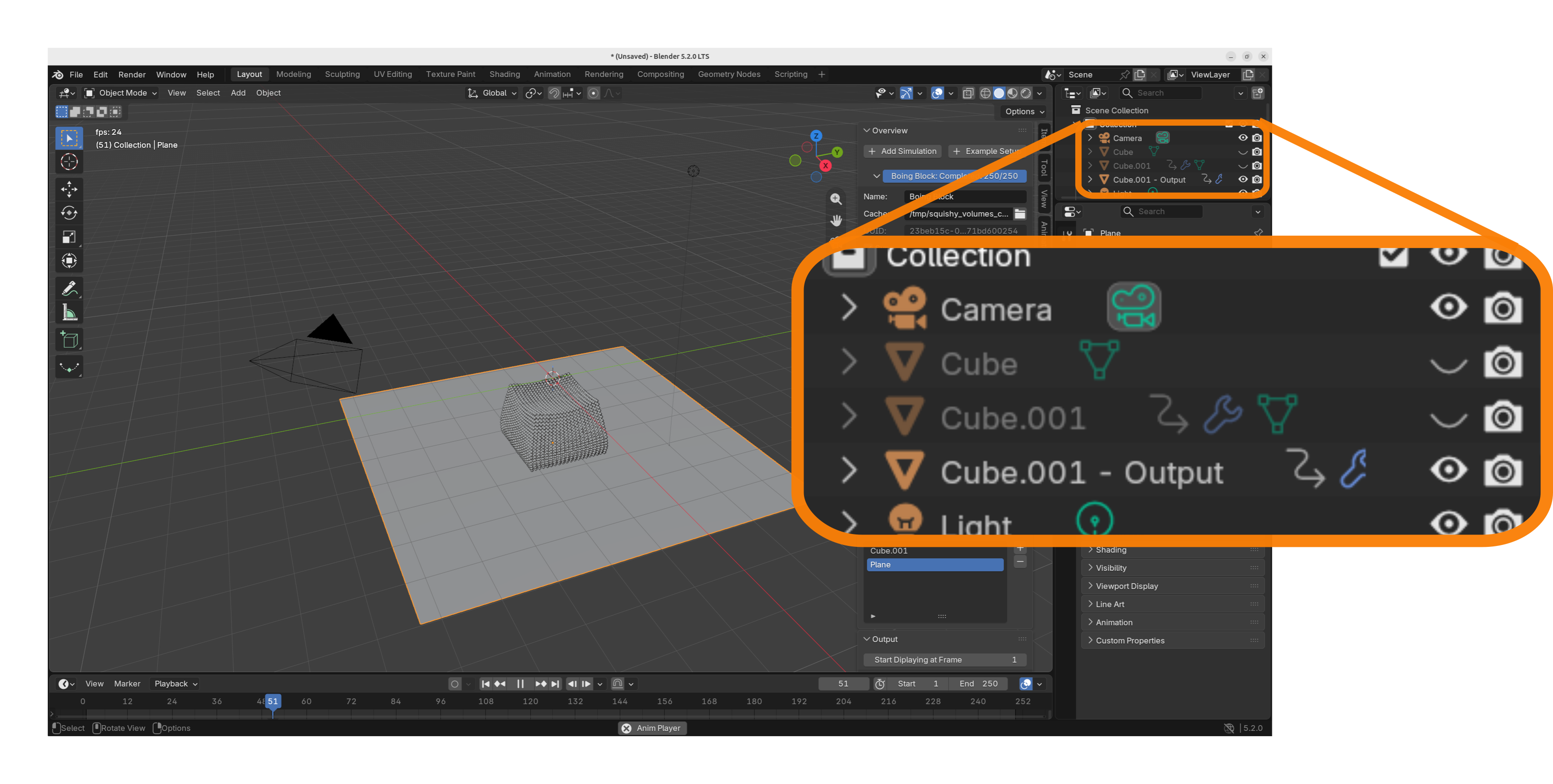
Finally, the default ‘Cube’ and ‘Cube.001’ are blocking our view of the simulation result and we need to hide them.
You can do this either by selecting them and pressing the hotkey ‘h’, or by clicking the eye button over in the outliner.
Got Started :)
That’s it! 🎉🎉🎉
Of course, this is only the most basic thing you can do with Squishy Volumes. But, getting started is usually half the effort in learning something new!
Take your time, scroll through the panels.
You might already have a pretty good guess at what each knob and button does, and if not, do not panic. We will cover the UI in detail in the next chapters of this book.